

1. Preparation
SPL WIN Data Analytics Practices - Contents
1.1 Download and installation
Download SPL Desktop for free.
1.2 Application interface
Install SPL Desktop, start esprocW and get into the following interface:
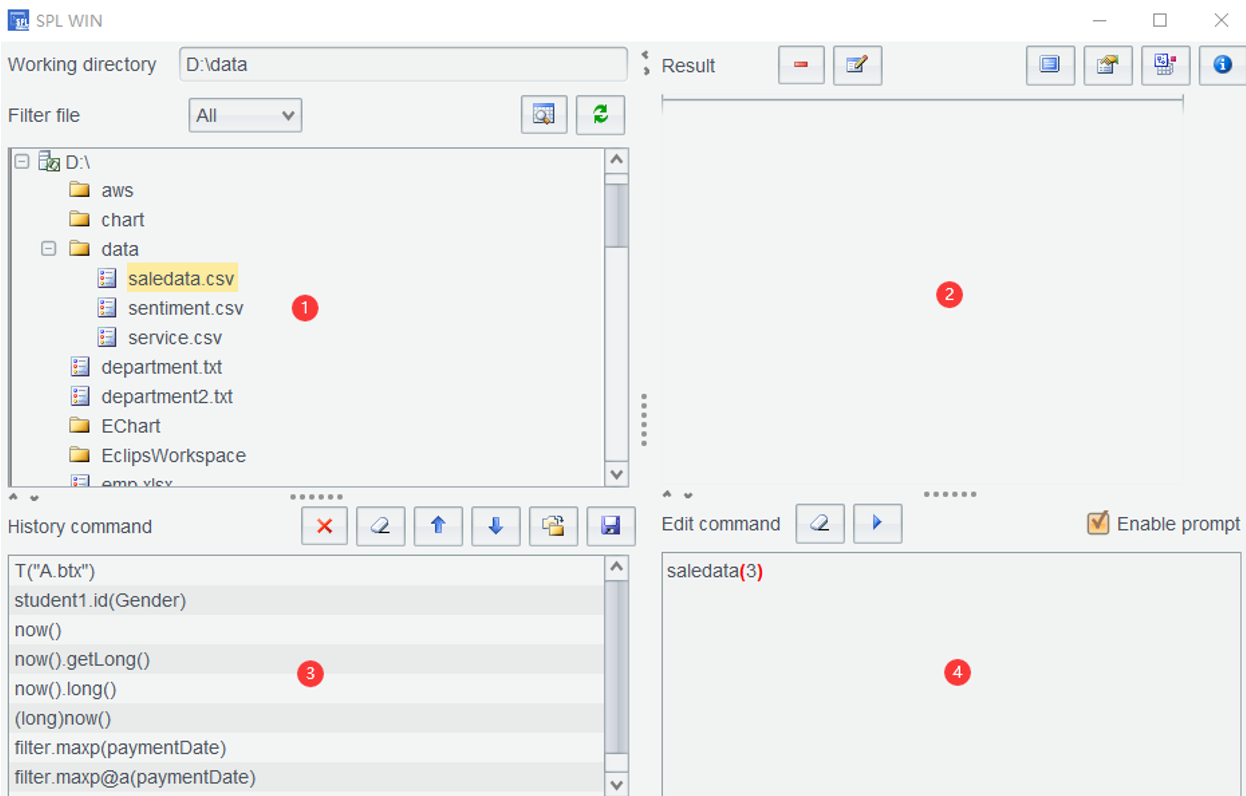
As the above shows, SPL Desktop interface is divided into four zones.
Zone 1 is Data File Zone, where data files available for analytics are directly listed from the file directory. At present, multiple file formats are supported, including text file (TXT and CSV), Excel file, and esProc proprietary bin file whose extension is BTX.
Zone 2 is Content Zone, where tab page will be displayed when a data file is opened. The toolbar on the tab page contains commonly used analytics commands, which allow you to visually set analytics conditions through a graphical interface, making data analytics easier and faster.
Zone 3 is Command History Zone, to which commands already executed in Zone 4 will be automatically appended. Historic commands are automatically saved and loaded.
Zone 4 is Edit Command Zone, where you can edit expression commands and execute analytics to implement more complex function computations or simple, non-visual editing functions that SPL provides through its rich data analytics function library, as the toolbar on the Content Zone tab page only implements some common computing functions.
2. A simple data analytics example
SPL Official Website 👉 https://www.esproc.com
SPL Feedback and Help 👉 https://www.reddit.com/r/esProcSPL
SPL Learning Material 👉 https://c.esproc.com
SPL Source Code and Package 👉 https://github.com/SPLWare/esProc
Discord 👉 https://discord.gg/sxd59A8F2W
Youtube 👉 https://www.youtube.com/@esProc_SPL