

8. Other abilities
8.1 Data table editing
With SPL WIN, in addition to using the interface-based analytical functionalities or execute functions in at command line to compute a table, you can also modify data in the SPL WIN table.
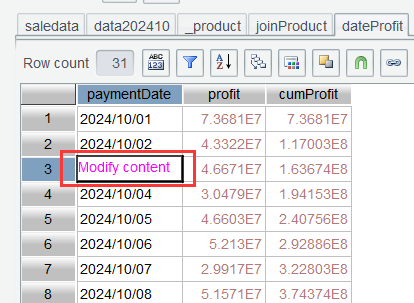
As the following screenshot shows, select a cell and click it to modify its text content:
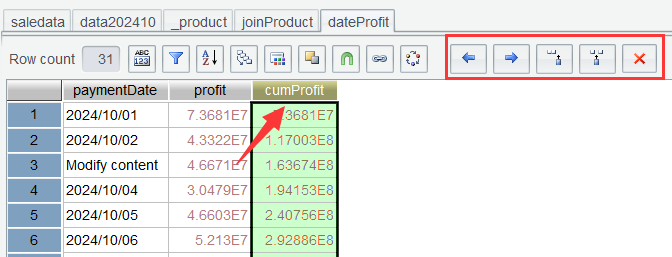
Click a column header and the corresponding icons responsible for performing operations on columns on the toolbar are enabled. Now you can adjust the order of columns and manually add/delete columns:
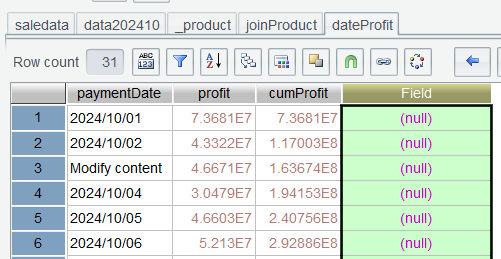
Directly add a column to the table:
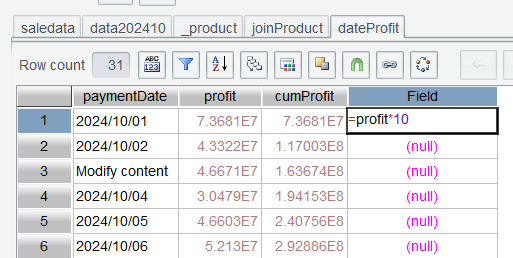
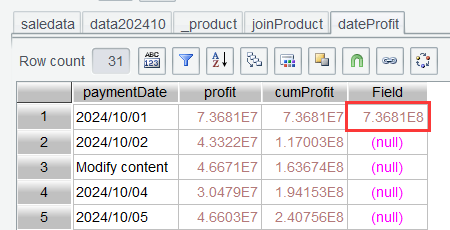
Enter an equals sign-headed expression in a cell to compute the cell value:
Press Carriage Return to obtain the result set:
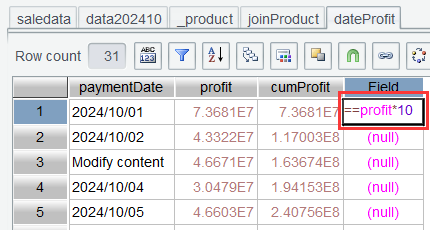
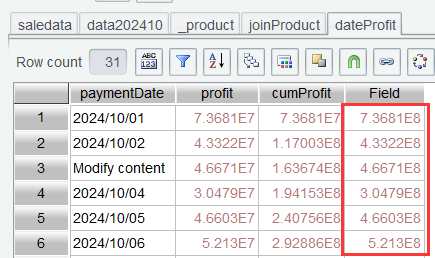
SPL WIN also allows suing a double equals sign-headed expression to assign values to a whole column:
Press Carriage Return to obtain the result set:
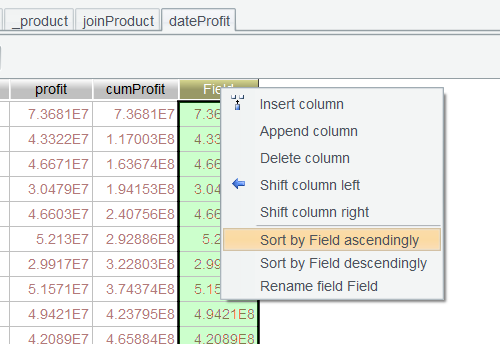
Select the column header, right click it to pop up the quick menu, and sort and rename the current column:
8.2 Saving a datable as text format
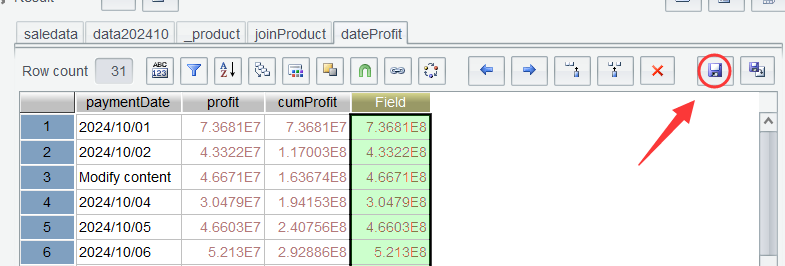
Click Save As Text icon on the interface to directly save the current table as text format:
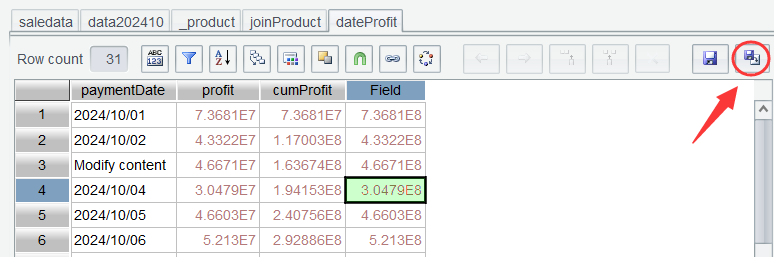
Click Export to File icon and save the current table as a desired format:
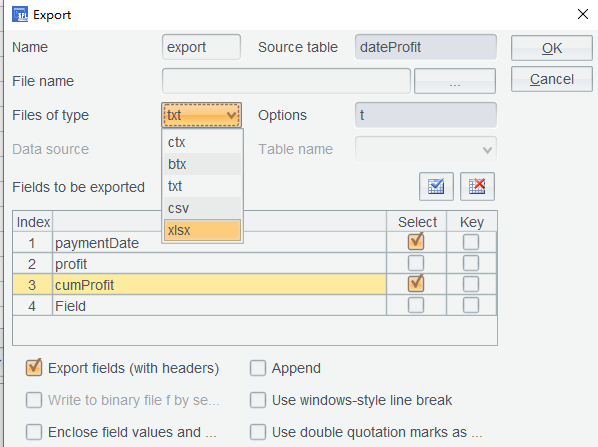
SPL WIN supports exporting a table as multiple formats, including text, Excel, and SPL proprietary btx file and ctx file. It also allows exporting certain columns:
8.3 Saving and loading historical commands
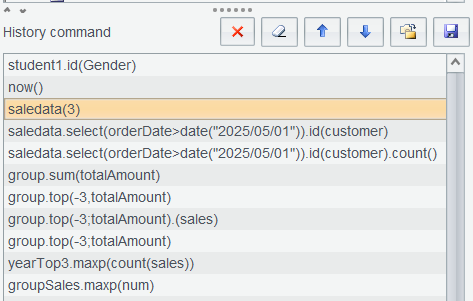
All commands executed in the Edit Command Zone are automatically appended to the Command History Zone, from which you can directly recall one of them to re-execute in a similar analysis later:
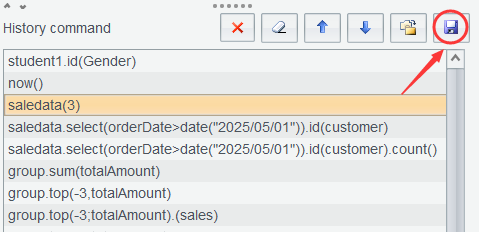
Historical commands can be automatically saved and loaded to the local machine. To execute them in a different machine, click Save icon to save them as a file:
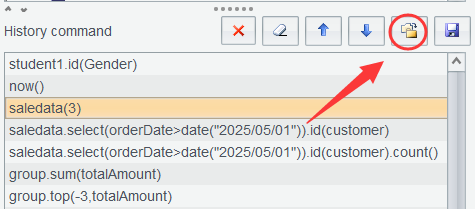
And then load them on that machine:
8.4 The concept of working directory
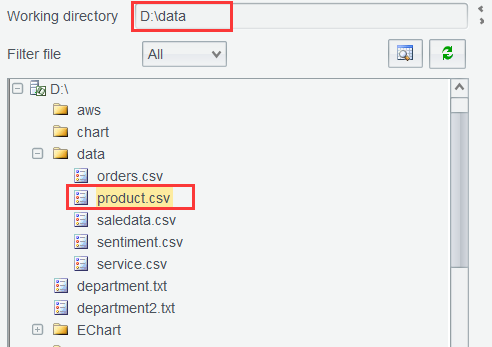
The working directory is always automatically set as the one holding the current file when you try to select a file in the Data File Zone:
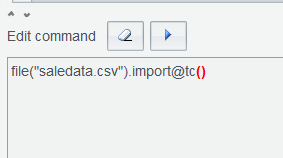
With the default working directory, just write the file name when you call a file under the working directory without the need to write the full path:
SPL WIN Data Analytics Practices
SPL Official Website 👉 https://www.esproc.com
SPL Feedback and Help 👉 https://www.reddit.com/r/esProcSPL
SPL Learning Material 👉 https://c.esproc.com
SPL Source Code and Package 👉 https://github.com/SPLWare/esProc
Discord 👉 https://discord.gg/sxd59A8F2W
Youtube 👉 https://www.youtube.com/@esProc_SPL